Operation Phoenix Summons and Unit Loadouts
Spend lobby Coins at the Operation Phoenix summon board to recruit new defenders, then open the Units menu to equip up to five towers in your active bar.
Using the Operation Phoenix Summon Board
To expand your roster, walk over to the Operation Phoenix Summon station in the lobby or open the summon interface to view the current featured banner. The board displays a banner refresh timer, with your Coin balance above the summon buttons. Keep lobby Coins separate from the match cash used to place and upgrade towers.
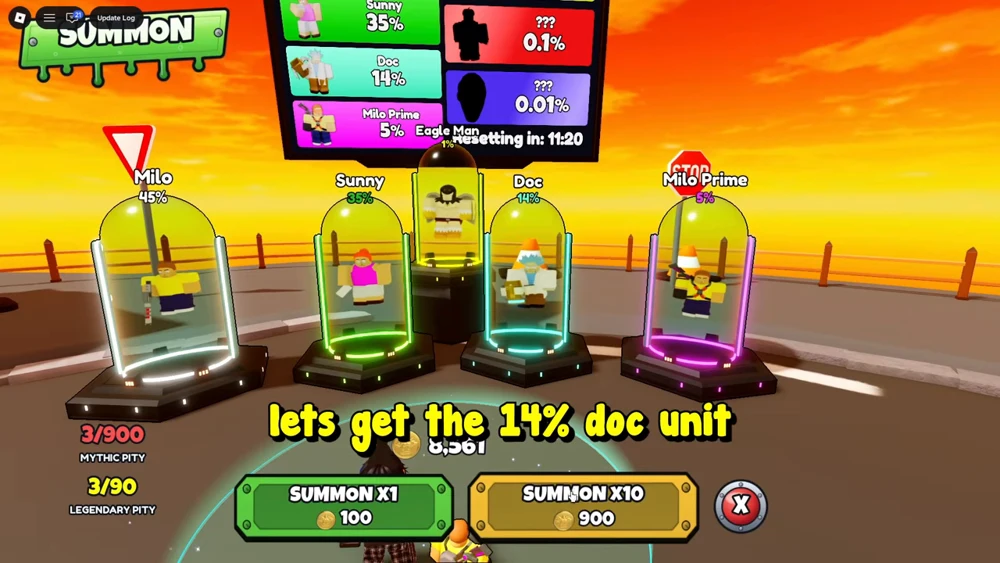
The Operation Phoenix board offers two recruitment buttons: Summon 1 for 100 Coins and Summon 10 for 900 Coins. At those displayed prices, ten pulls cost 100 fewer Coins than ten singles. Check the live price before spending. Wait to see what the active banner highlights before spending your balance, as featured units and displayed rarity percentages can rotate when the refresh timer expires.
Unit Rarities and Recruitment Results
Every summon rolls a unit from the banner pool and presents a result card labeled with the character name and rarity tier. Recorded pulls across Operation Phoenix banners show tiers including Common units like Milo, Uncommon units like Sunny, Rare units like Doc, and Epic units like Mr. Crowbar and Milo Prime, while crafted or high-tier defenders can reach Mythic status. When you use Summon 10, all ten result cards appear on screen at once so you can review every rarity you received.
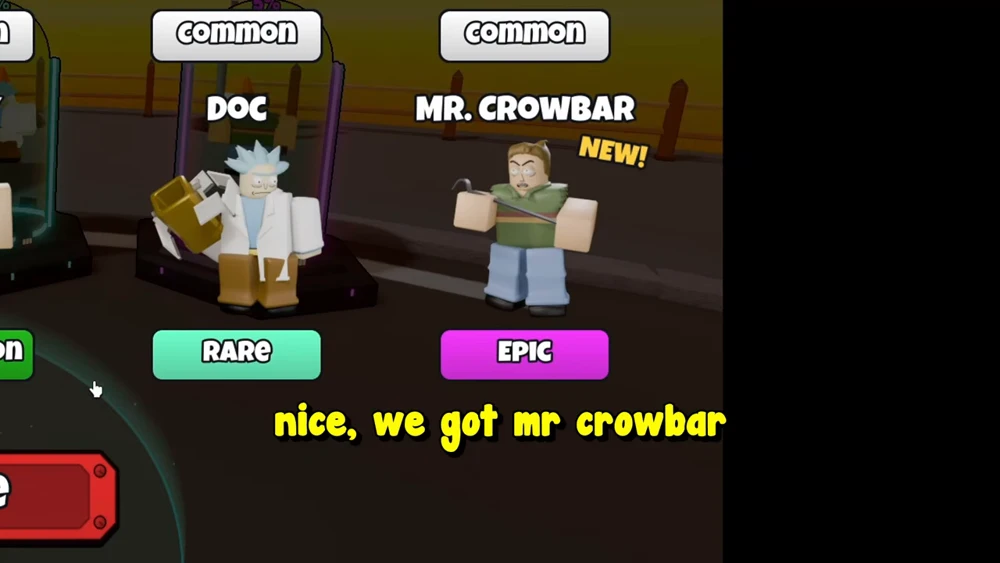
The board also displays Legendary and Mythic pity counters. Read those live counters before planning a recruitment session; their reset rules are unverified. Treat single-session pull streaks or rare drop stories from other players as normal luck variance, and always check the odds printed directly on the Operation Phoenix screen during your play session. After closing the results display, all newly recruited copies go straight into your unit storage.
Managing the Units Inventory and Stats
Open Units to browse your defenders. The search bar filters by name, and the storage counter shows your current capacity, such as 429 out of 750 in the recorded account. Along the bottom of the storage panel, you will find red action buttons labeled UNEQUIP ALL and SELL UNITS for clearing your active bar or removing unwanted duplicates.
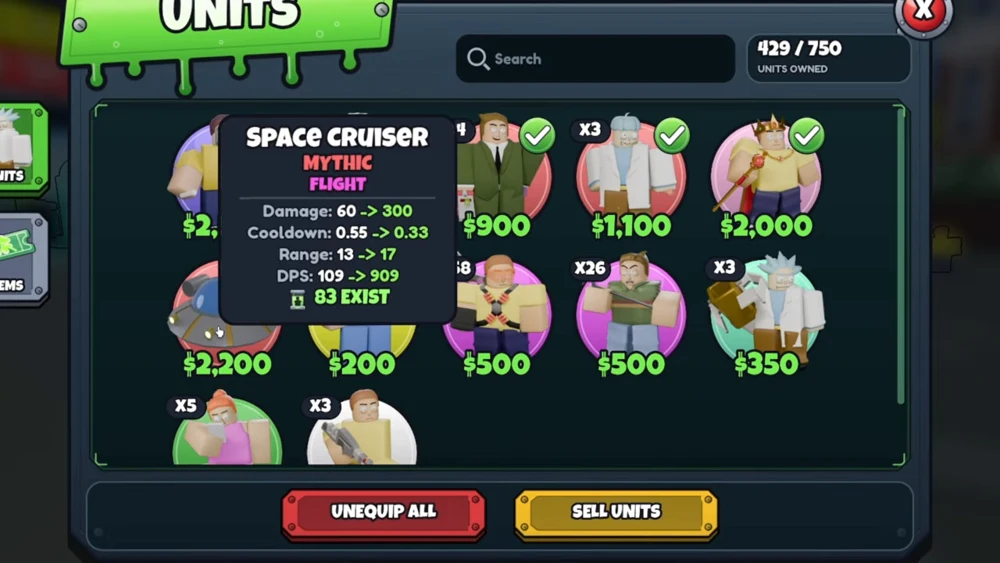
Inspect a character card in the grid to see its stat summary. This panel lists the unit rarity, special traits such as Flight, base-to-maximum stat ranges for Damage, Cooldown, Range, and DPS, and the exact in-match cash required to place the unit on the map. Be careful when clicking SELL UNITS and review which copies are selected. The recording does not establish a recovery option for sold units.
Balancing Your Five Equipped Loadout Slots
Equipping a defender from your inventory marks its card with a green checkmark and places it into one of the five numbered loadout slots at the bottom of your screen. Because you can only carry up to five distinct choices into a portal, inspect the placement price of each equipped unit before queuing for a match. A heavy Mythic tower like the Space Cruiser costs 2,200 cash to deploy, which is far too expensive to place during Wave 1.
Pair any expensive late-wave tower with at least one affordable early-game defender costing around 500 cash so you can cover the opening waves without leaking enemy health. If you want to completely rebuild your team for a different map or difficulty, press UNEQUIP ALL in the Units menu and select your new five-unit combination one by one. Check your bottom bar one final time before stepping into a portal pad.